Reviewing Proposals
Last updated: October 11, 2026
In this guide, we'll explain how to use the Halo review system to view proposals, submit evaluations using the simple scorecard, and analyze feedback.
Viewing Proposals
Navigate to https://www.halo.science/reviewer_dashboard
Click the title of your partnering request to access the proposals submitted by innovators.
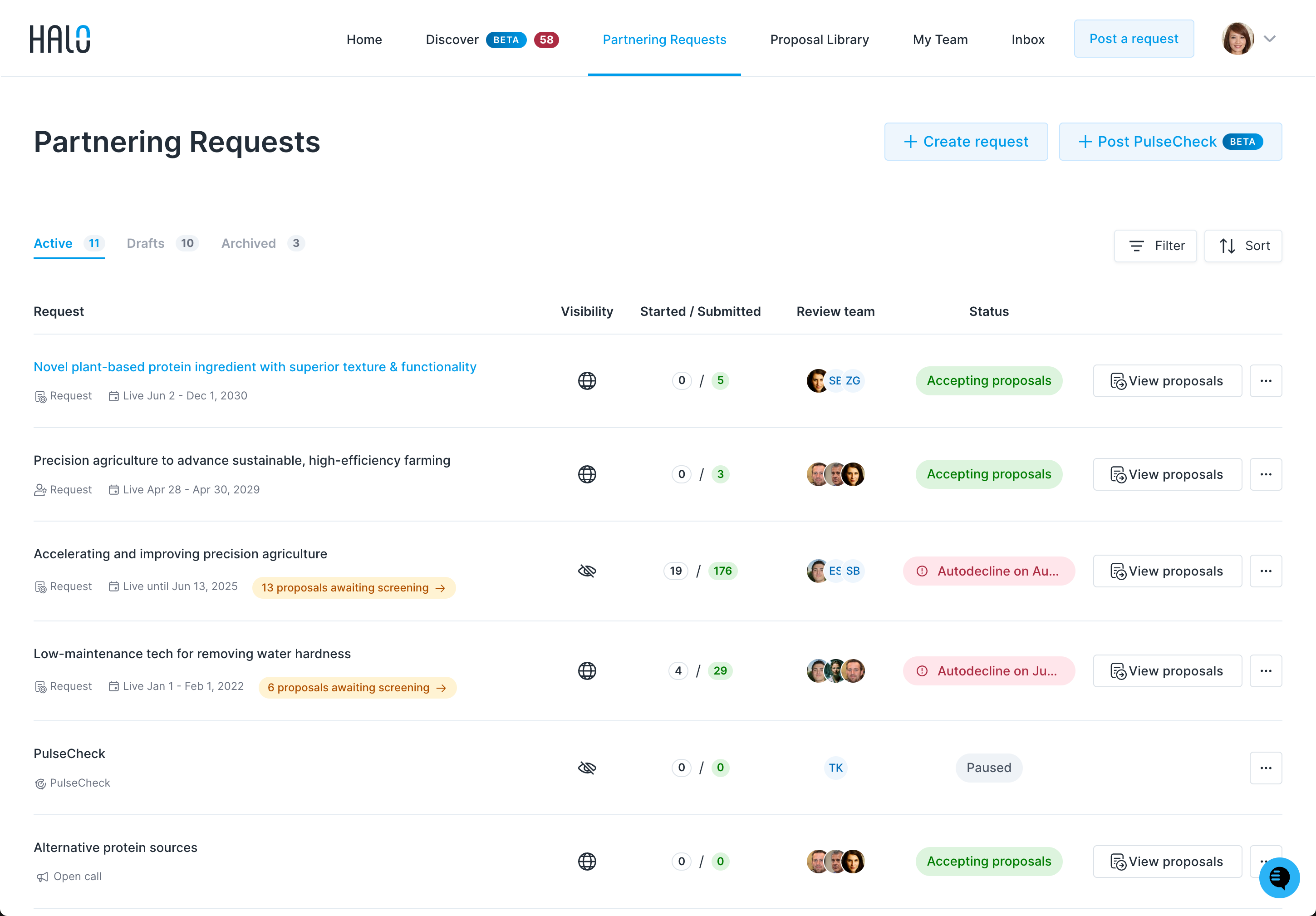
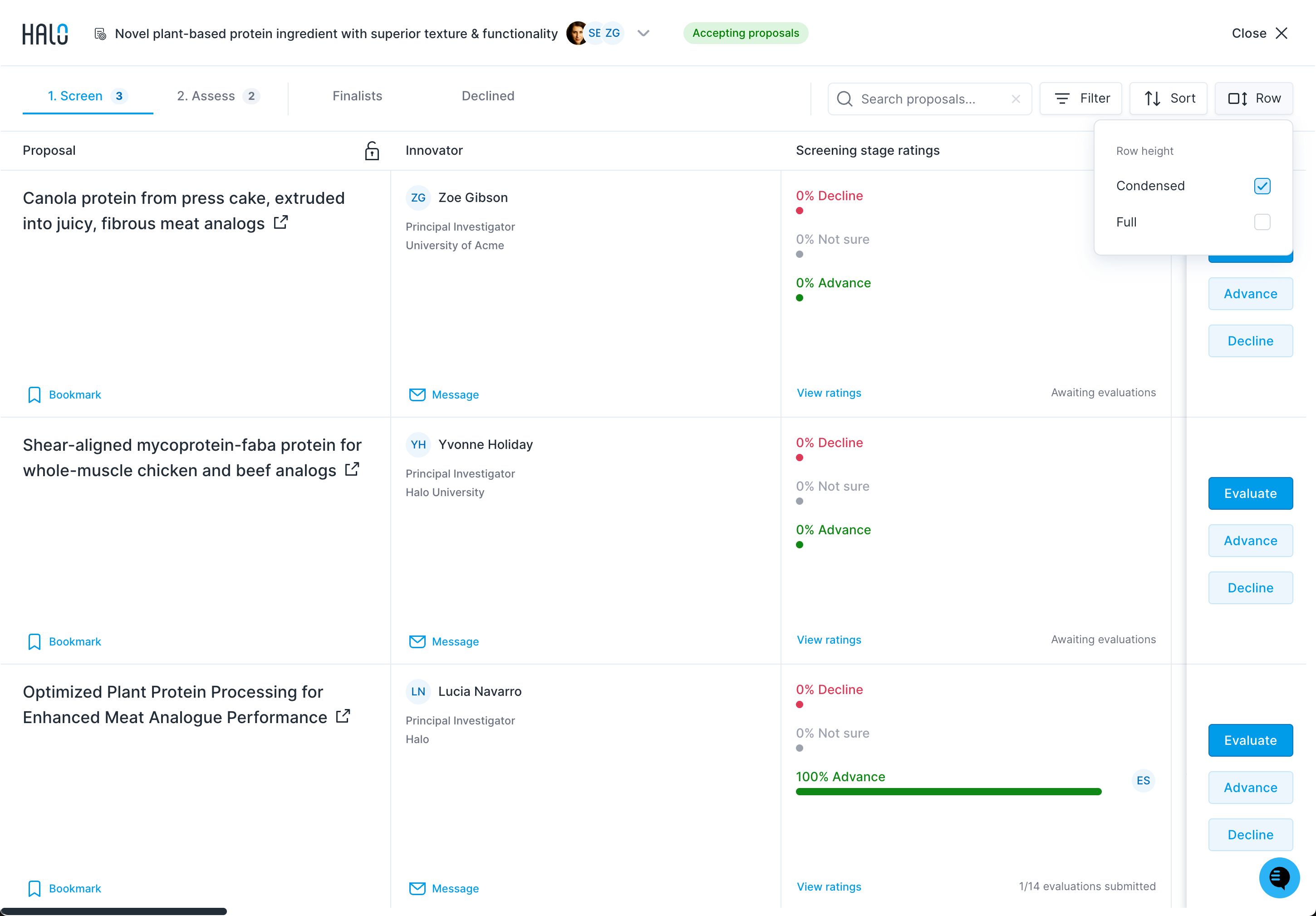
All proposals begin in the 1. Screen tab. Briefly evaluate proposals based on their content and innovators’ profiles and advance those of interest. The tabs are 1. Screen, 2. Assess, Finalists and Declined.
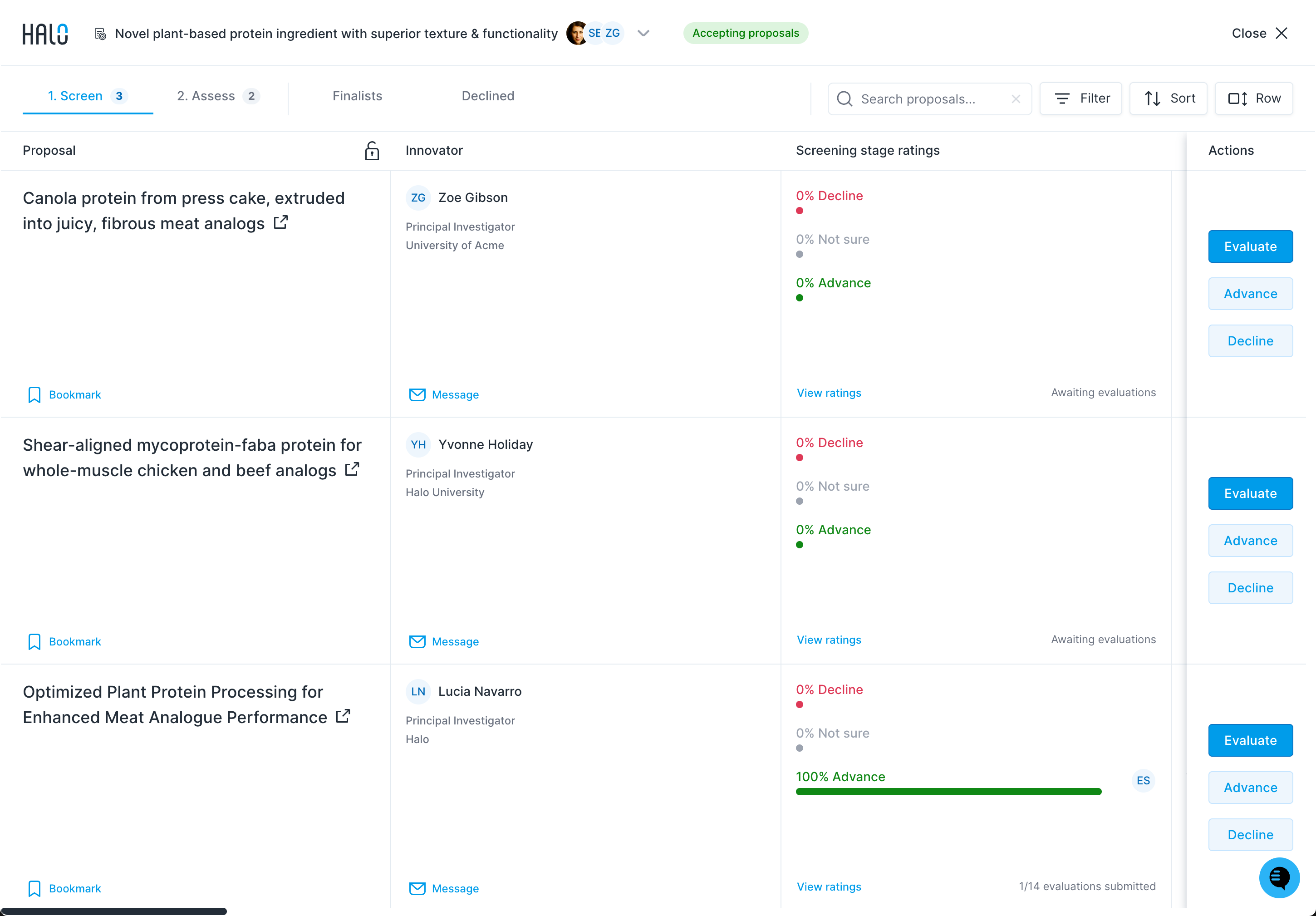
You can also open a single-page version of each proposal in a new tab by clicking the proposal title. Hovering over the title shows "Open in page view".
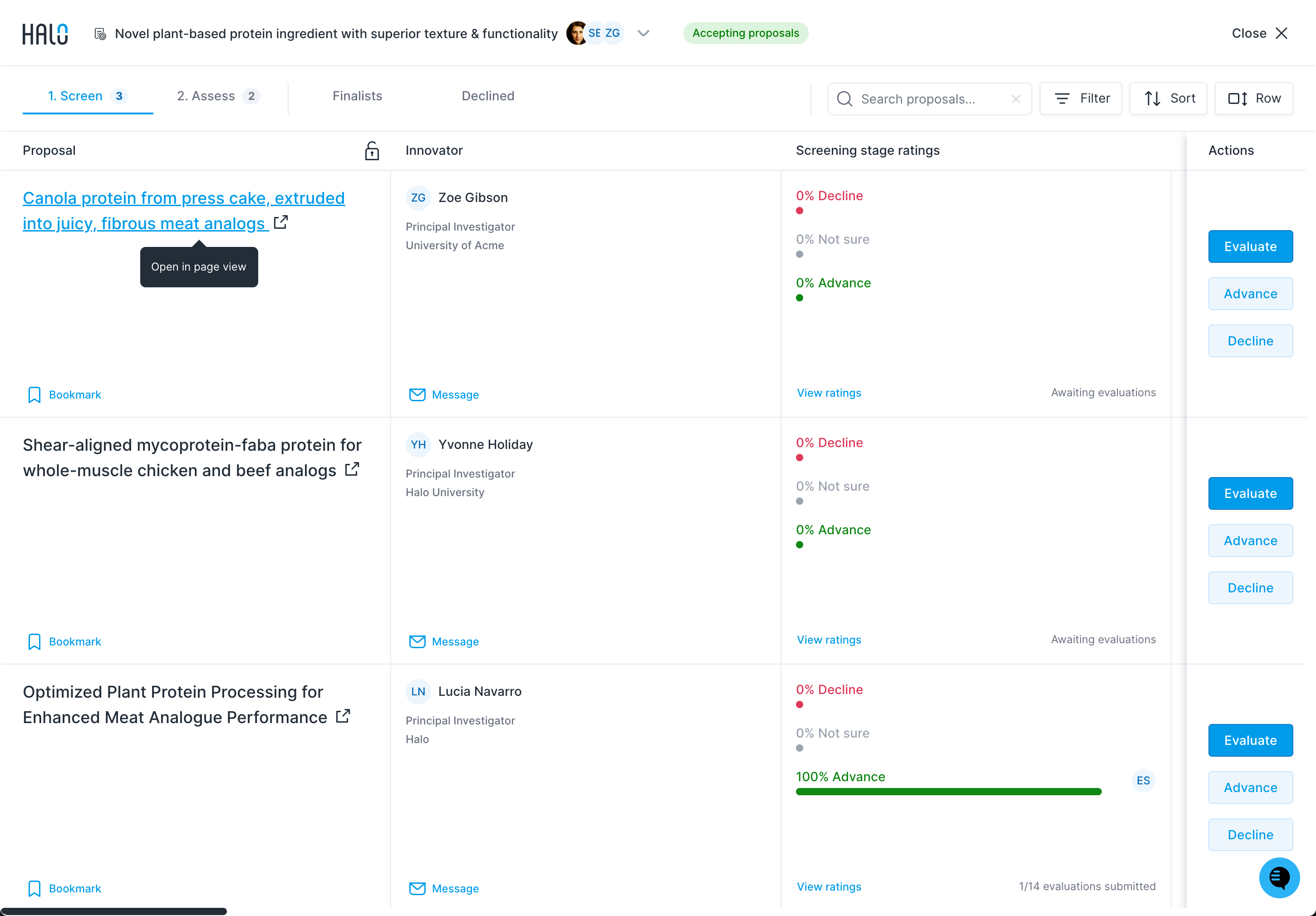
Click Bookmark at the bottom left of any proposal to mark it as interesting—you can filter proposals to show only bookmarked items for easy review later.
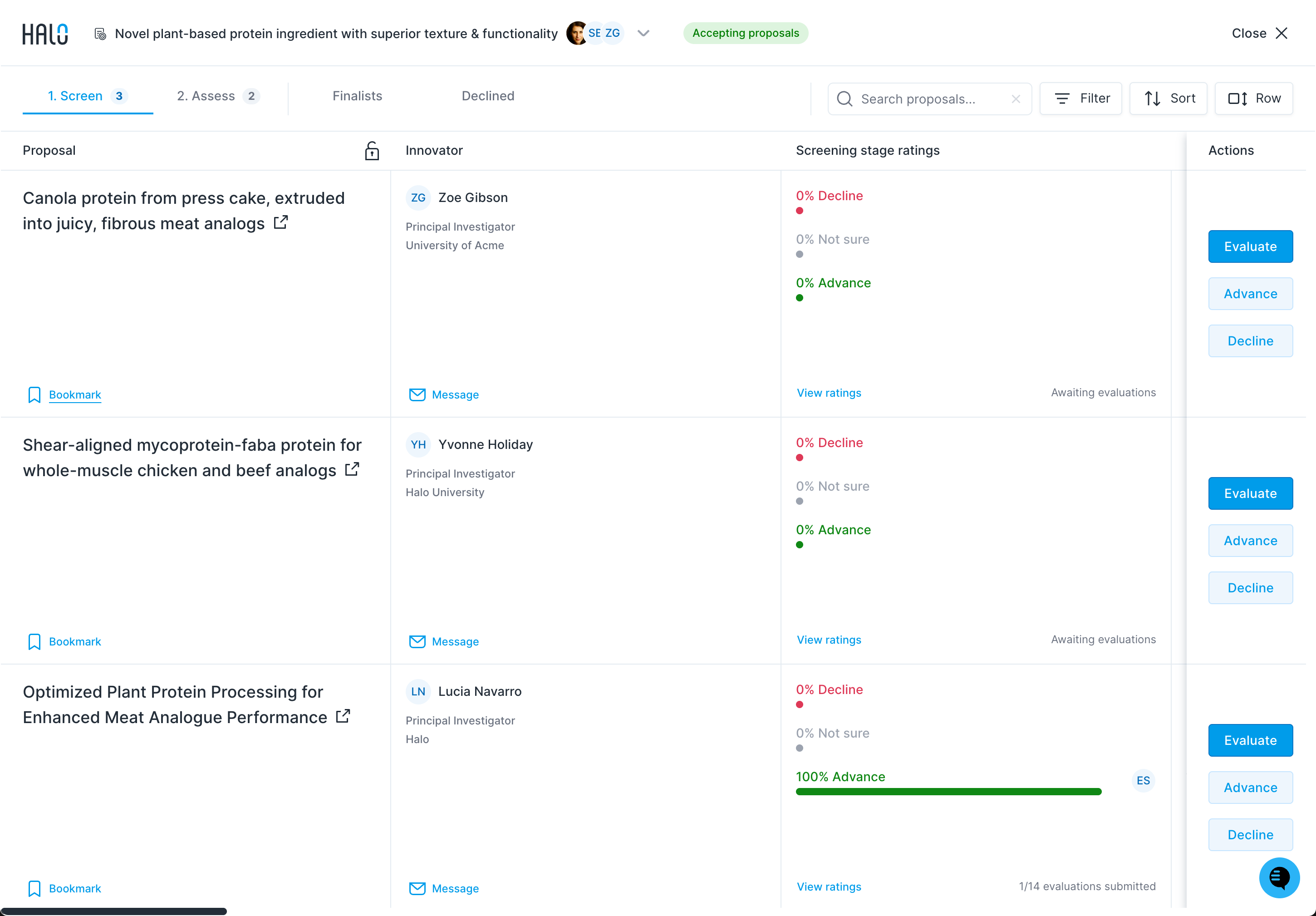
Click the Filter button to filter your proposals by criteria including Solution of interest, Technology Readiness Level, Country, Organization type, Organization name, Review activity (which covers evaluated or not), plus the Show only criterion leaders and Show only bookmarked proposals checkboxes.
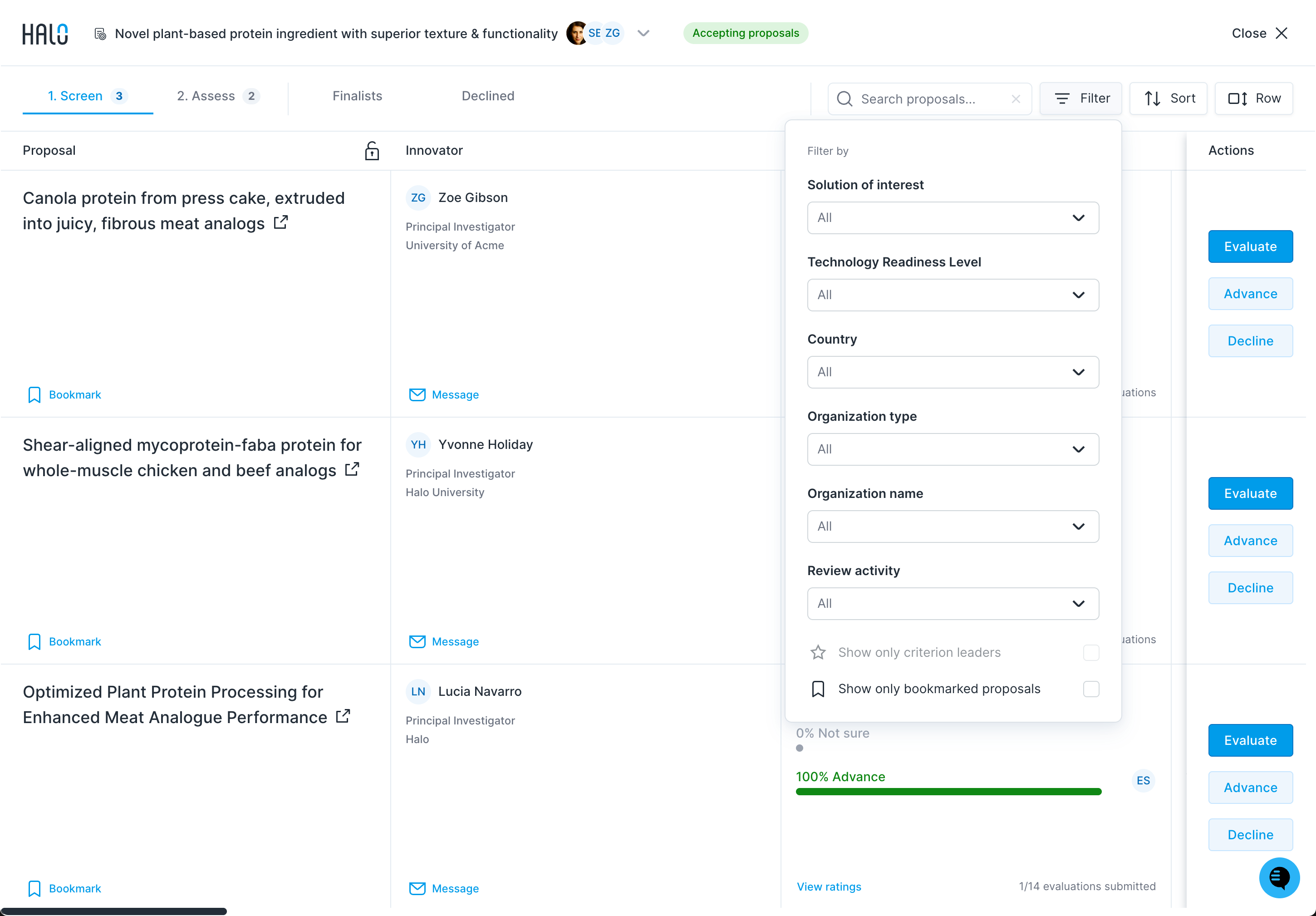
Click the Row button to adjust the height of each row in your grid view to either Condensed or Full.
Submitting an Evaluation
Note: The simple scorecard in the 1. Screen tab of the Halo review system promotes a streamlined, lightweight screening process to help accelerate initial responses for innovators.
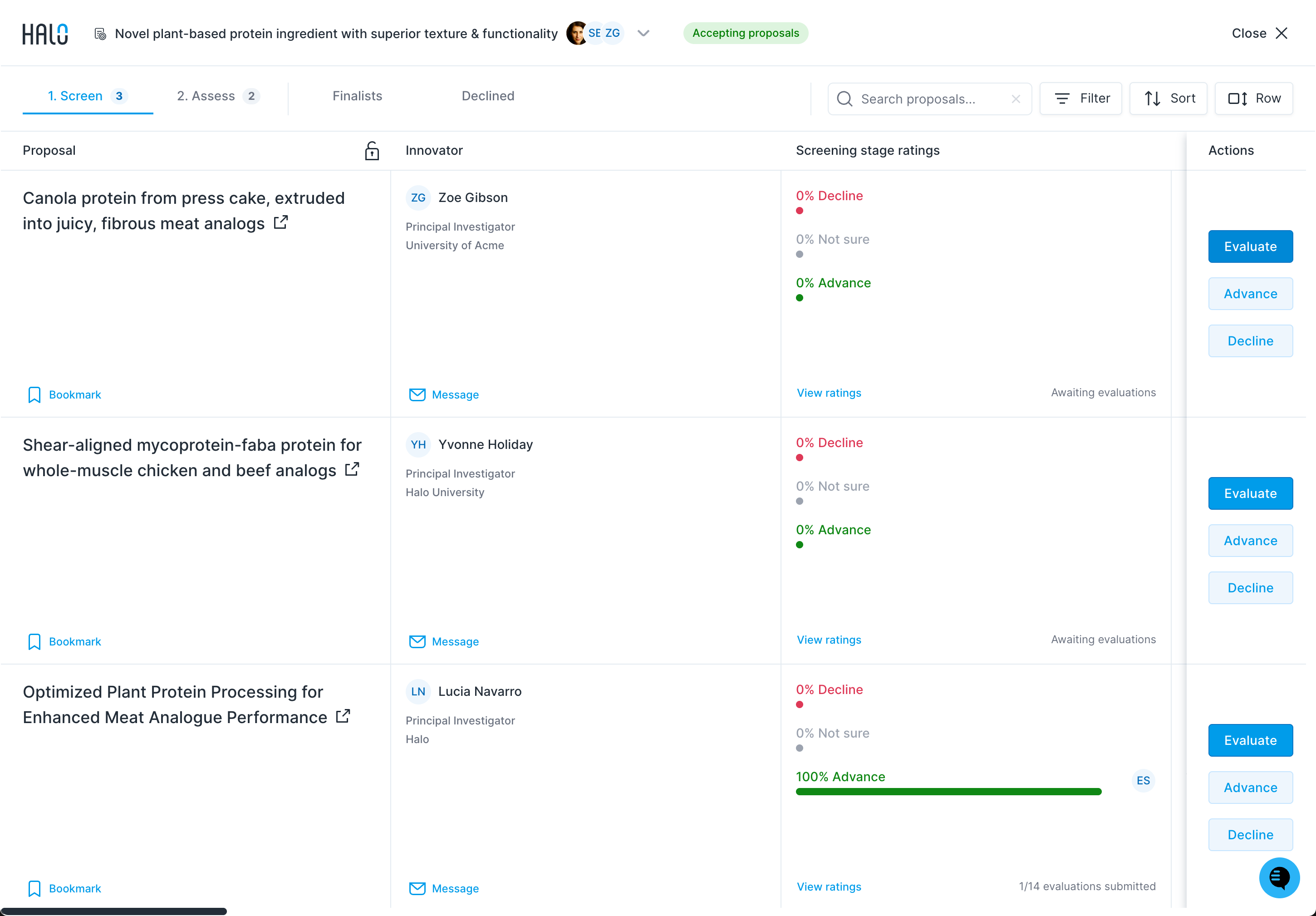
Click the Evaluate button on the action panel on the right side of the review system grid to open the scorecard for a specific proposal.
Click the Submit internal eval tab to provide feedback about the proposal to your review team Leads. Under “Recommendation to review team Leads” choose Not Sure, Recommend advance or Recommend decline, then answer “Why did you give this recommendation?” in 2 to 3 sentences.
Team chat should be used only to coordinate review activities internally, not to leave feedback about the proposal.
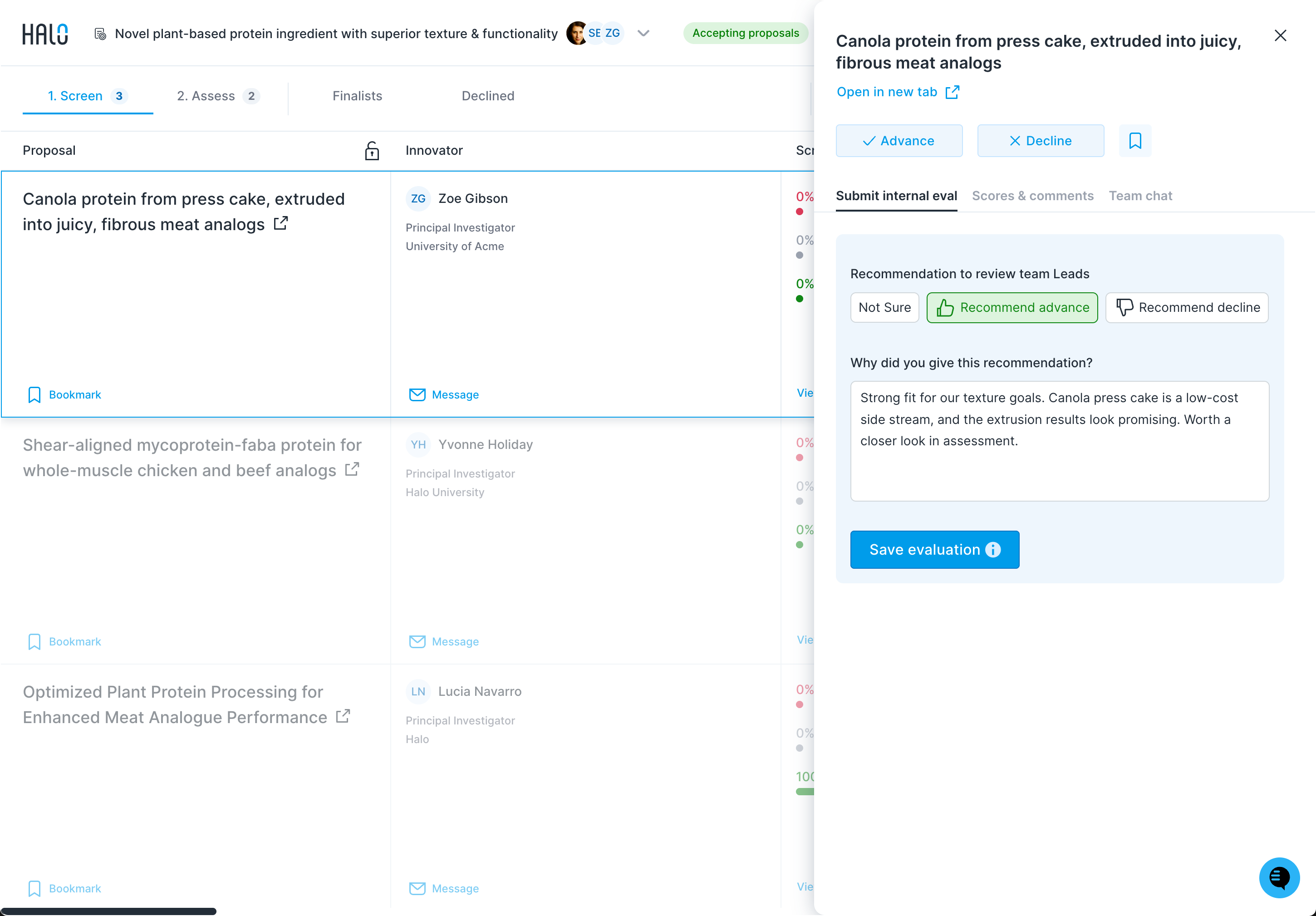
Your rating and comments will not be automatically saved. If you leave or refresh the page, you'll lose your ratings and comments.
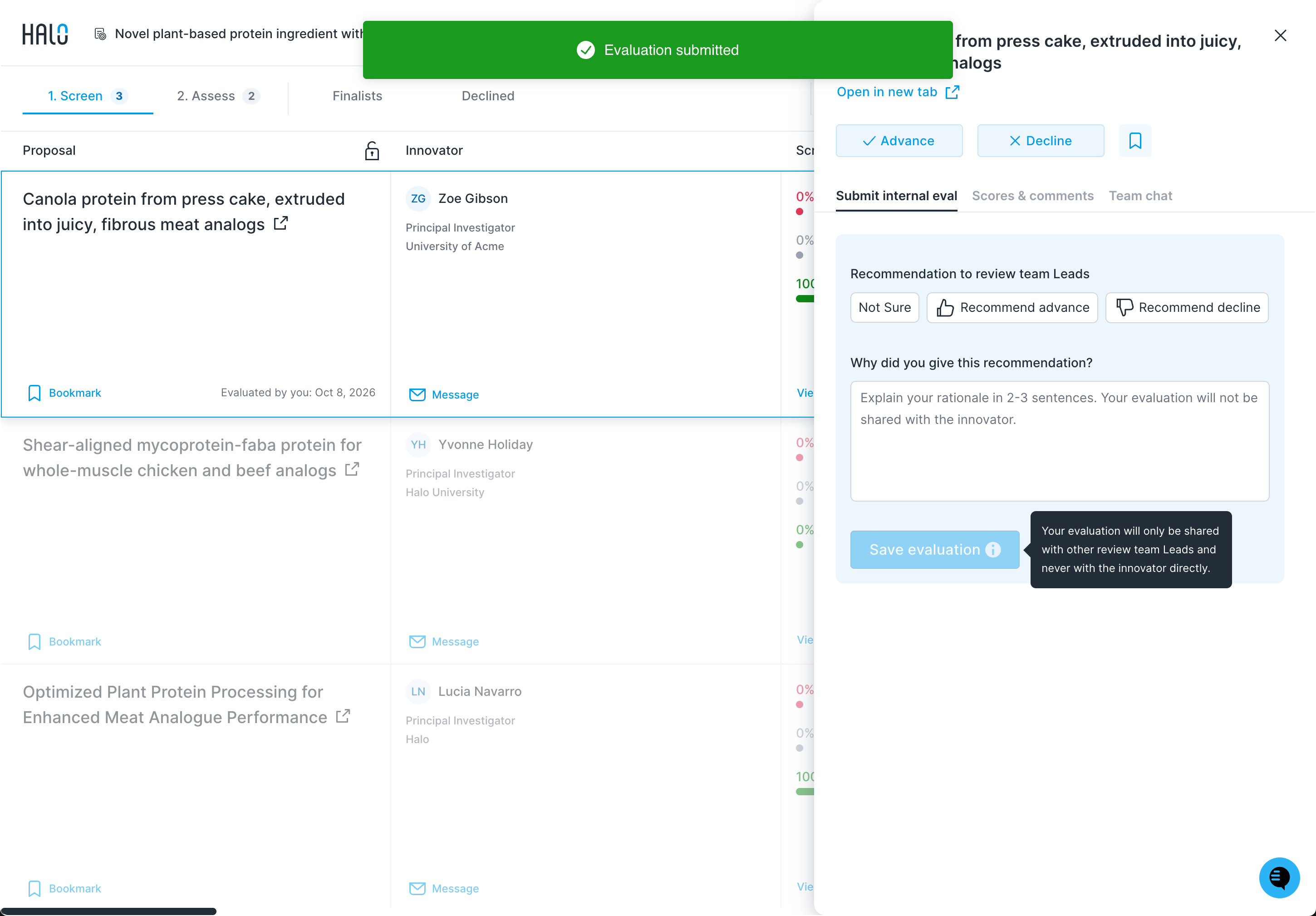
Click Save evaluation (if you're a Lead) or Submit to Leads (if you're a Commenter) to submit your scores & comments. In either case, your evaluation will never be shared directly with innovators, only with your review team Leads. A green Evaluation submitted message appears, and the proposal row shows Evaluated by you: with the date.
Analyzing Review Team Feedback (for Leads)
If you’re a Lead, you’ll see a rollup of recommendations from your review team in the Screening stage ratings column (percent Decline / Not sure / Advance, plus how many evaluations were submitted). Click View ratings, or Scores & comments in the evaluation pane, to see more details.
The Screening stage comments column (marked with a sparkle icon) summarizes team comments using Halo AI: 📄 The Review Process: Best Practices for Advancing & Declining Proposals (for Leads)