Using the Advanced Scorecard
Last updated: October 11, 2026
In this guide, we'll walk you through the process of submitting and analyzing review team feedback using the advanced scorecard in the Halo review system.
Submitting an Evaluation
Note: The advanced scorecard is available exclusively in the 2. Assess tab of the Halo review system. This promotes a streamlined, lightweight process in the 1. Screen tab to help accelerate initial responses for innovators.
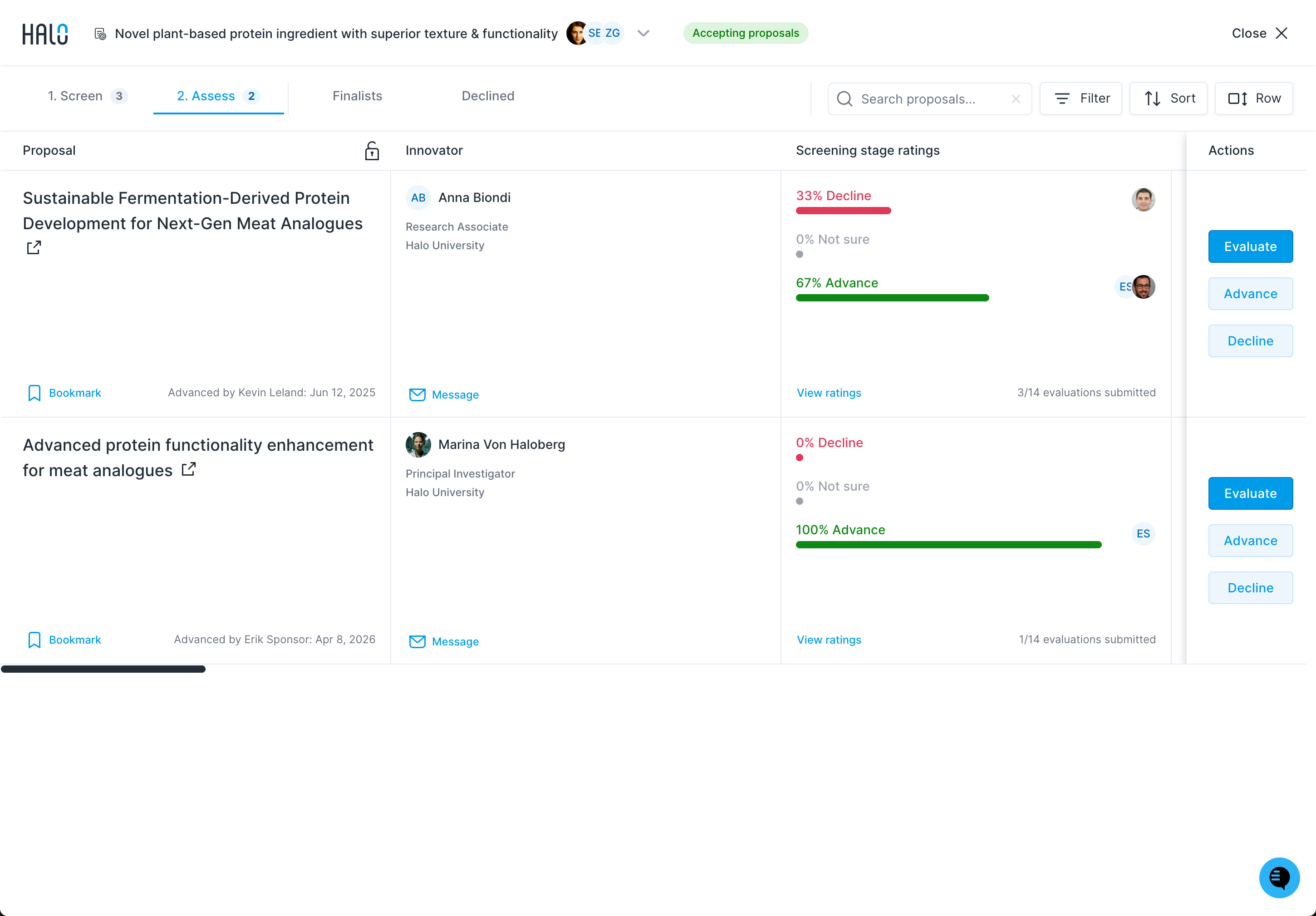
Click the Evaluate button on the action panel on the right side of the review system grid to open the scorecard for a specific proposal.
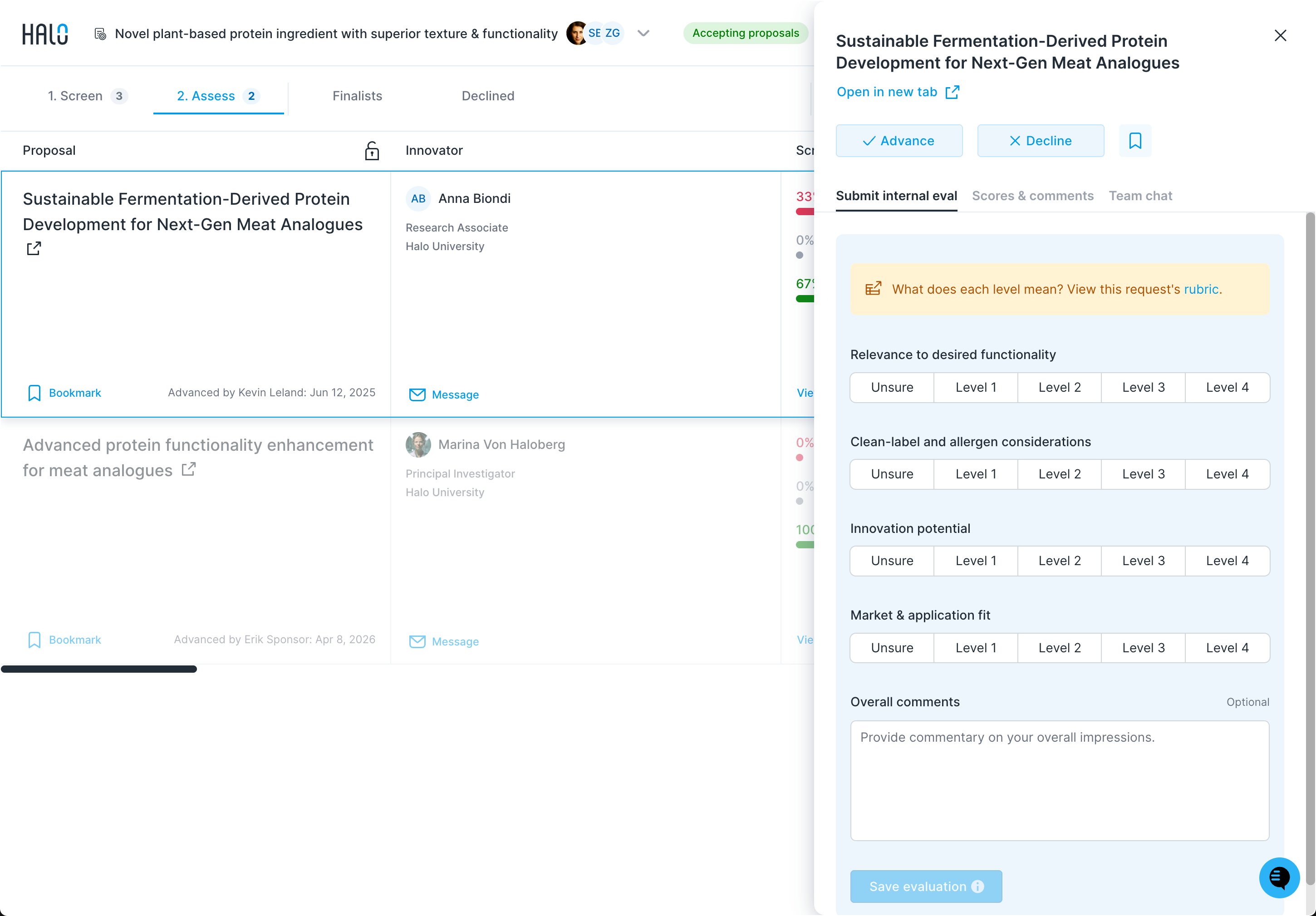
Once the evaluation panel opens, click rubric in the yellow banner at the top of the scorecard ("What does each level mean? View this request’s rubric.") to open the rubric supplied by your review team in a separate browser tab. This will clarify what each level means for the criteria on the scorecard.
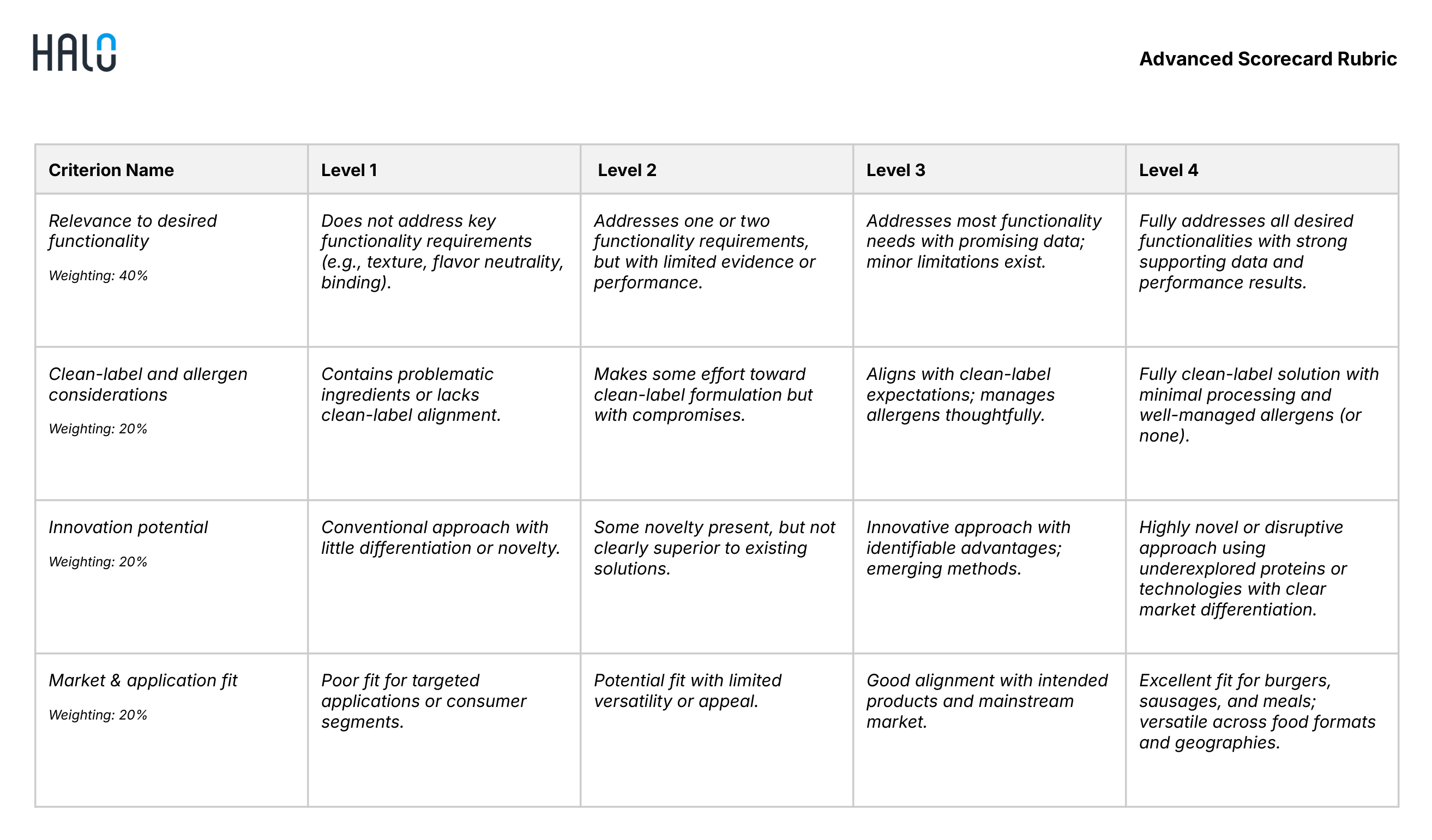
Review the rubric to understand the levels for the scorecard.
Select a level to rate the proposal on a specific criterion: Unsure, Level 1 to Level 4.
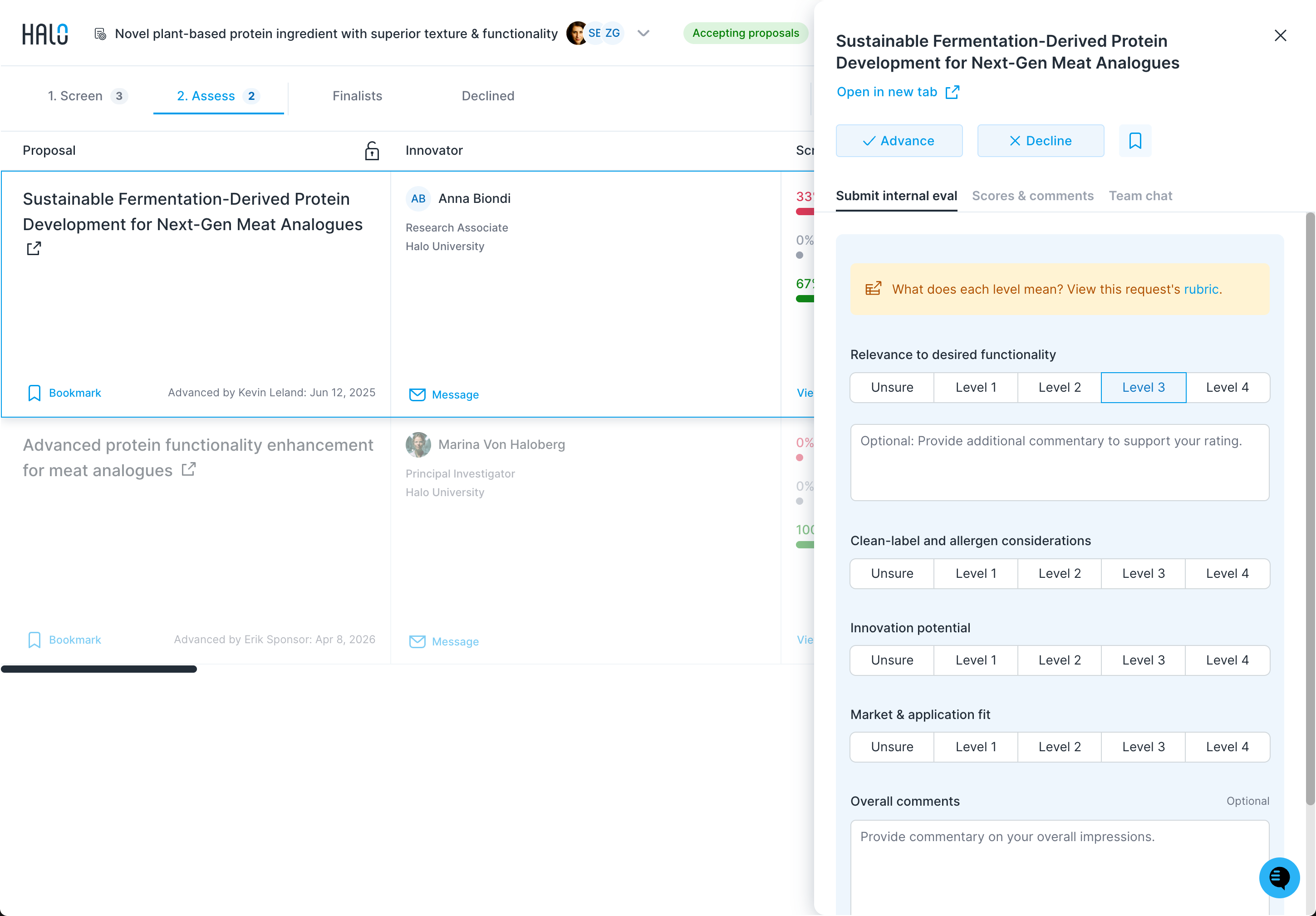
You’ll need to choose a rating for every criterion in order to submit your evaluation. The Save evaluation button stays grayed out until every criterion has a rating. You can select Unsure if you can’t choose a rating.
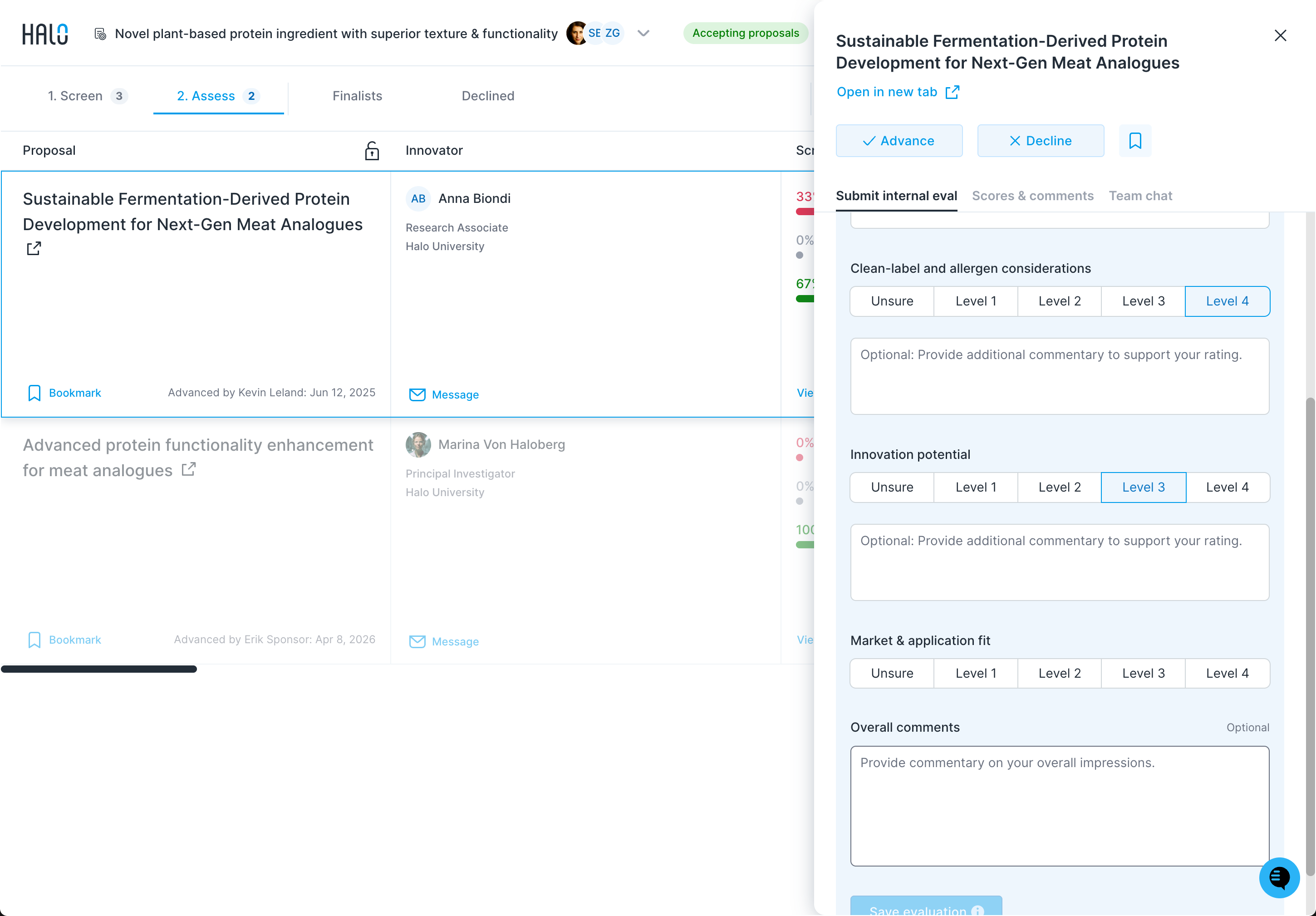
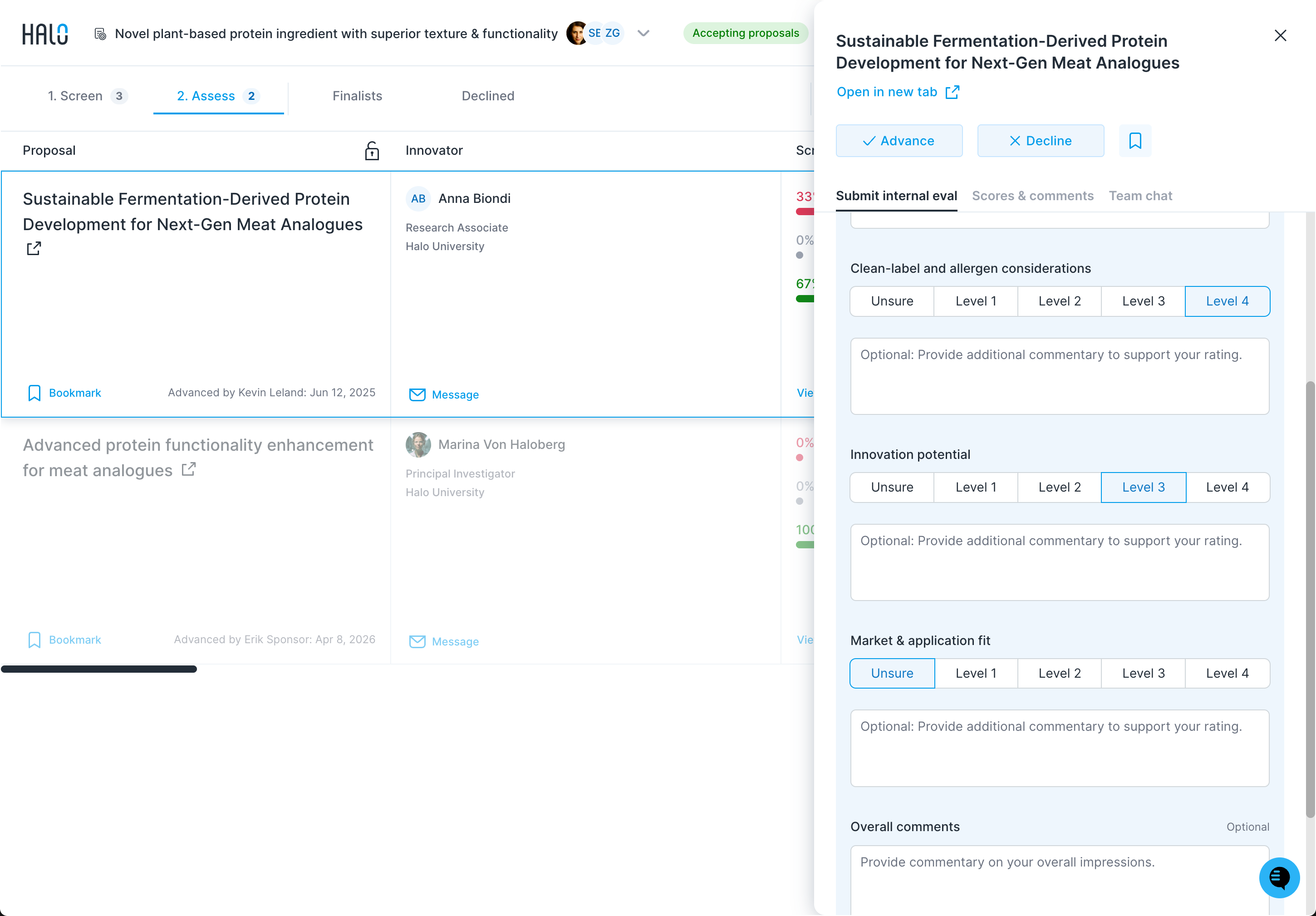
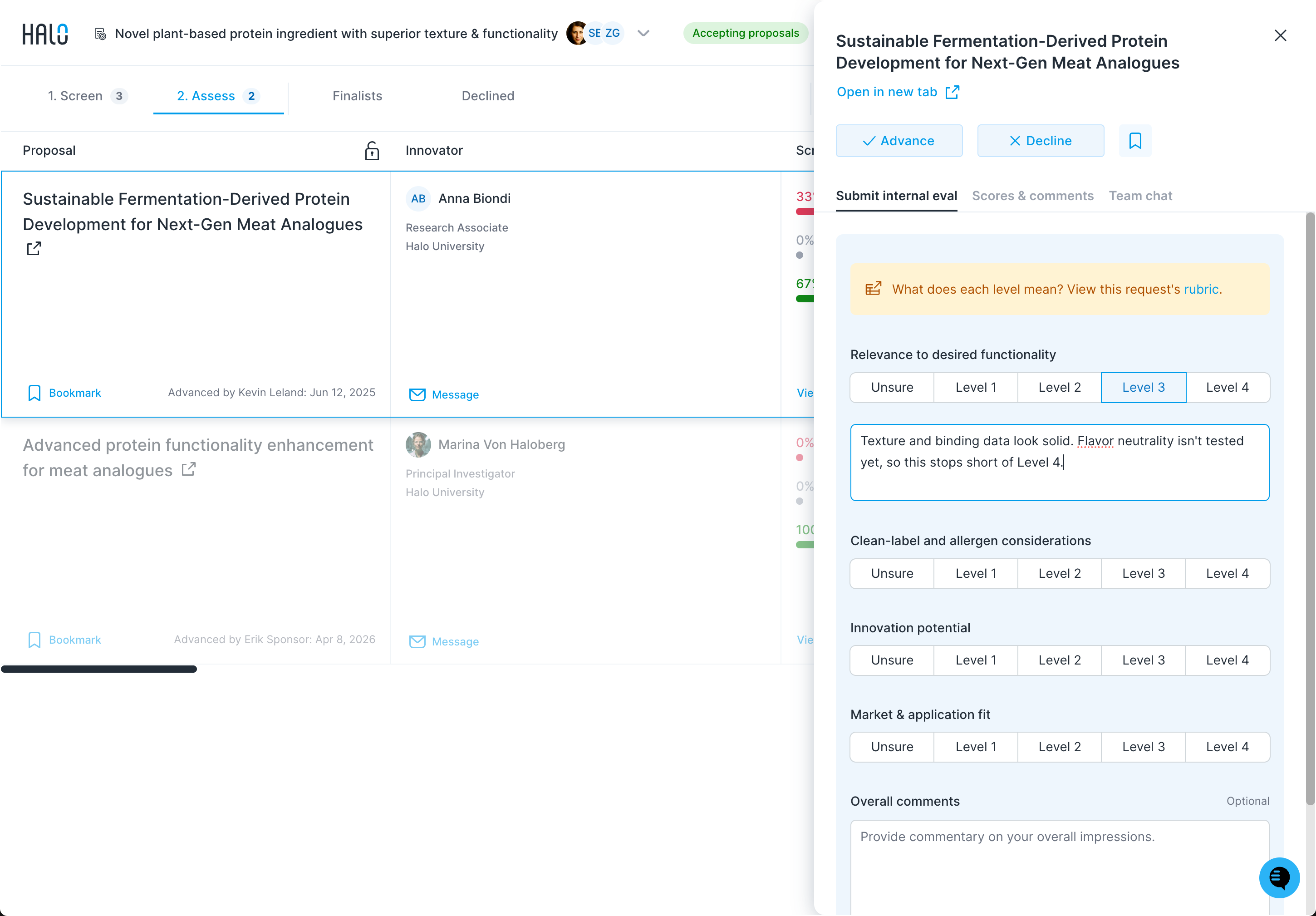
When you select a level, you can add comments to explain the rationale for your rating.
Scroll down to the bottom of the evaluation panel to leave overall comments on the proposal.
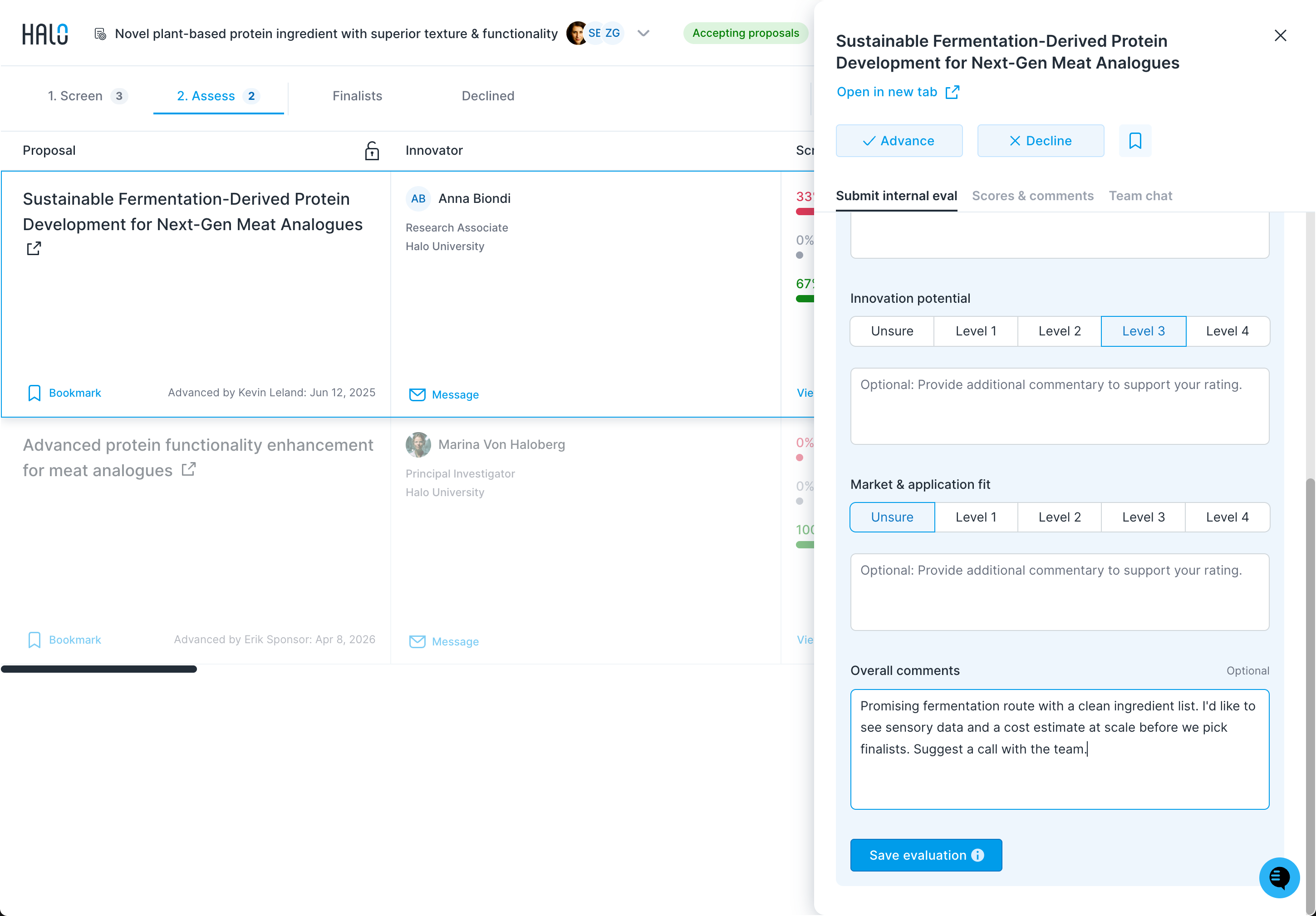
Note: Your ratings and comments will not be automatically saved. If you leave or refresh the page, you'll lose your ratings and comments.
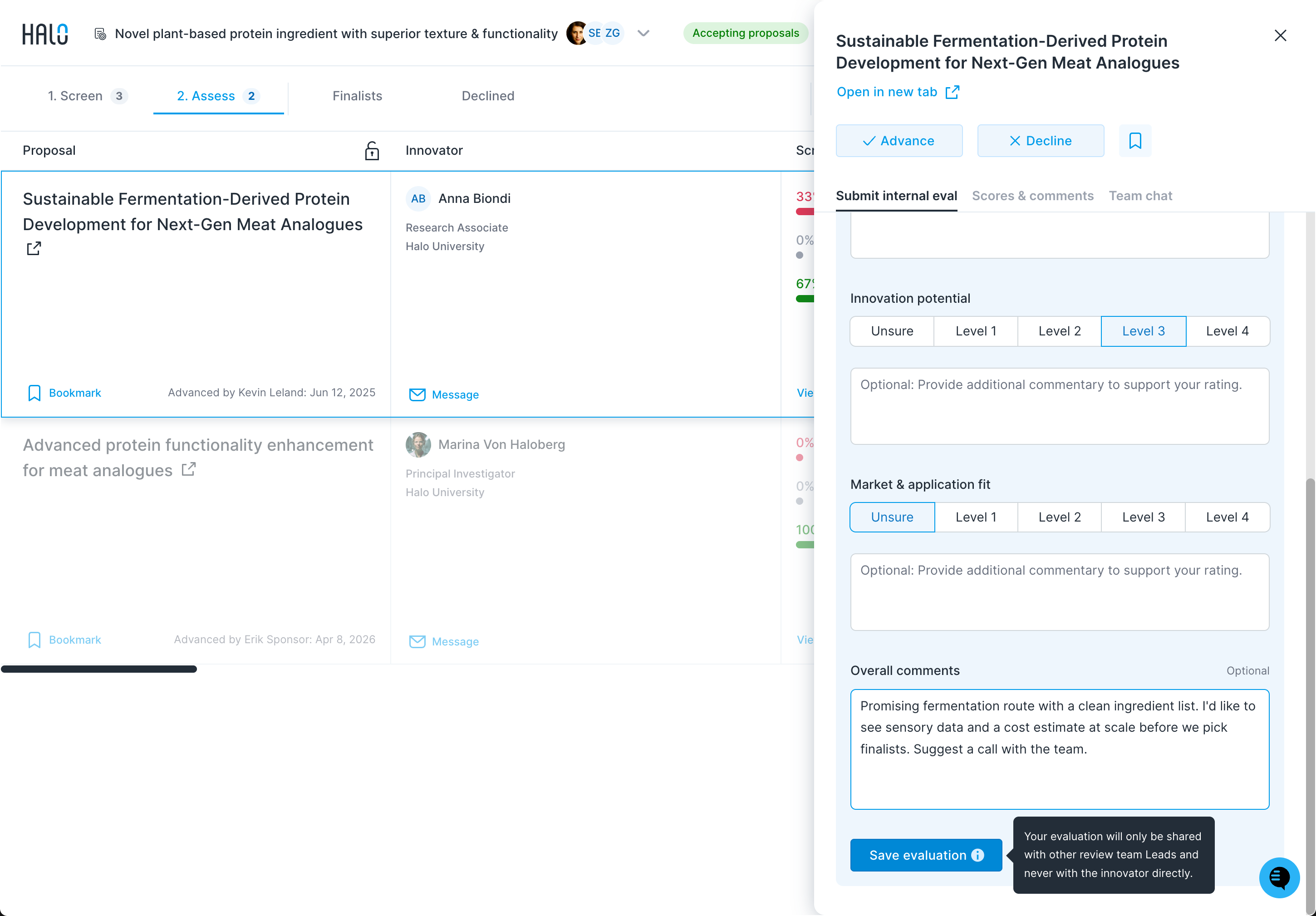
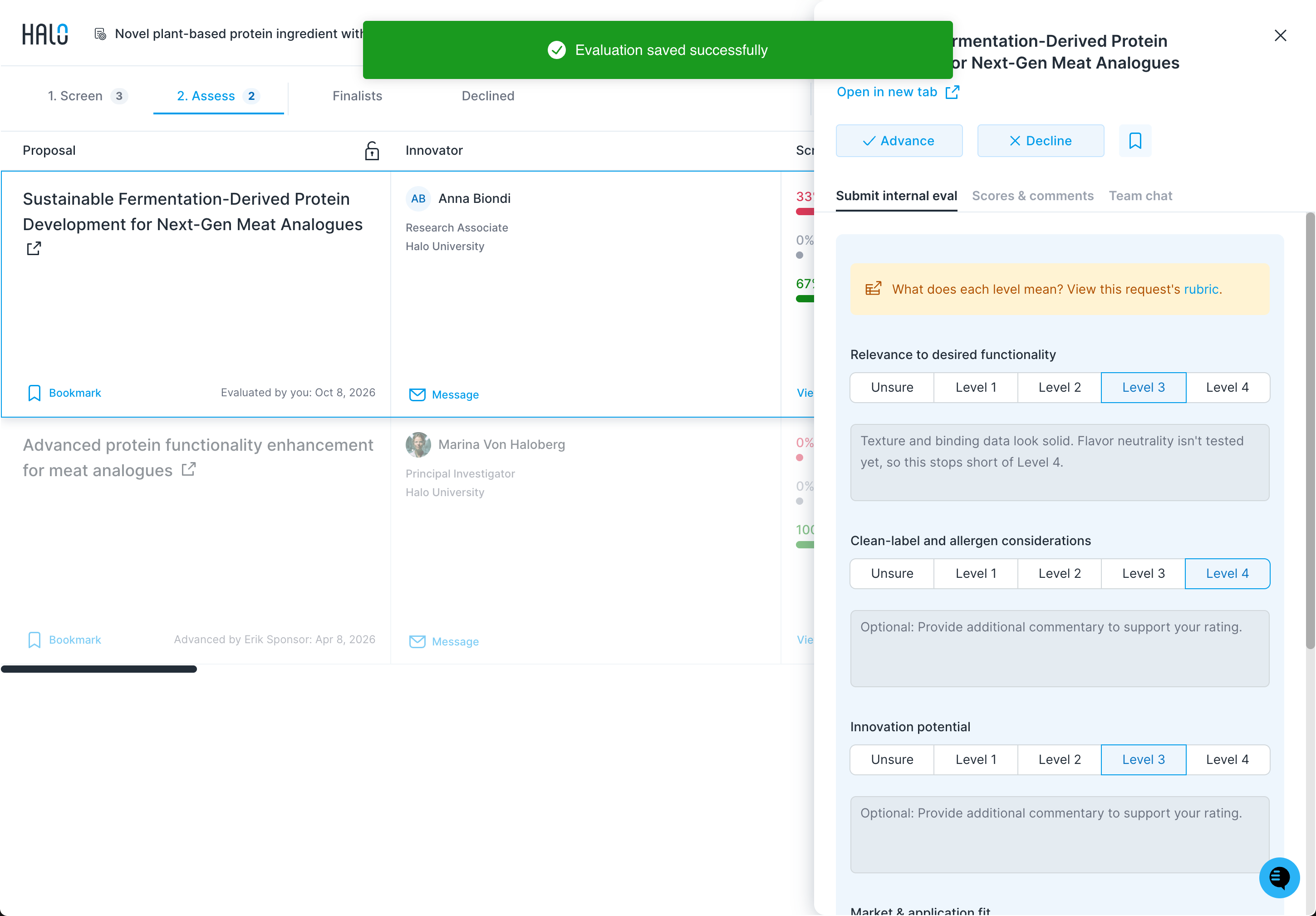
Click Save evaluation (if you're a Lead) or Submit to Leads (if you're a Commenter) to submit your scores & comments. In either case, your evaluation will never be shared directly with innovators, only with your review team Leads. A green Evaluation saved successfully message appears and your ratings stay visible, grayed out.
Analyzing Review Team Feedback (for Leads)
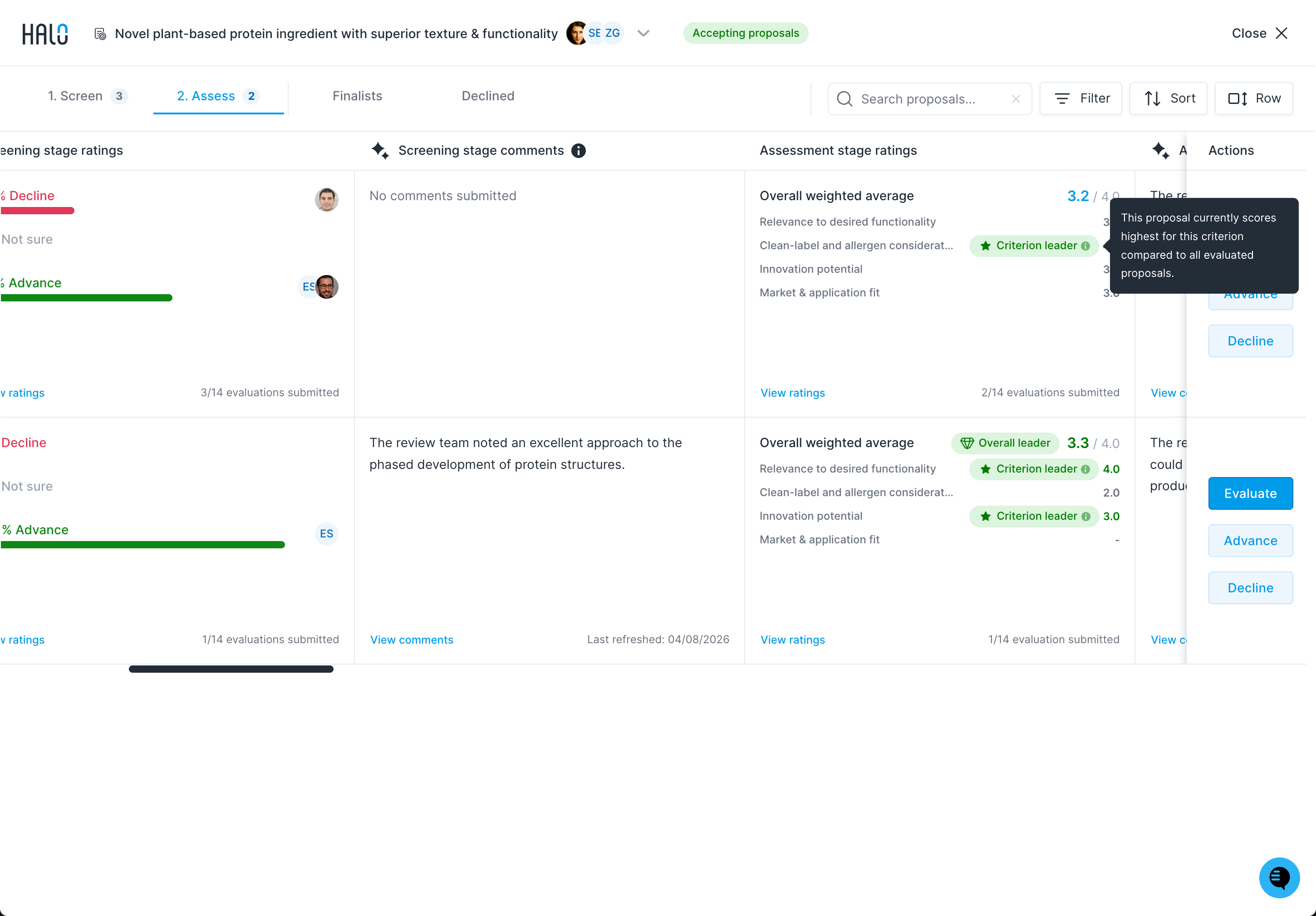
If you’re a Lead, you’ll see a rollup of scores from your review team in the Assessment stage ratings column, including the Overall weighted average and the average for each criterion. Hover over the green Criterion leader and Overall leader badges to learn what they mean.
Click View ratings to view written feedback from your review team, alongside additional details. This opens the Scores & comments tab.
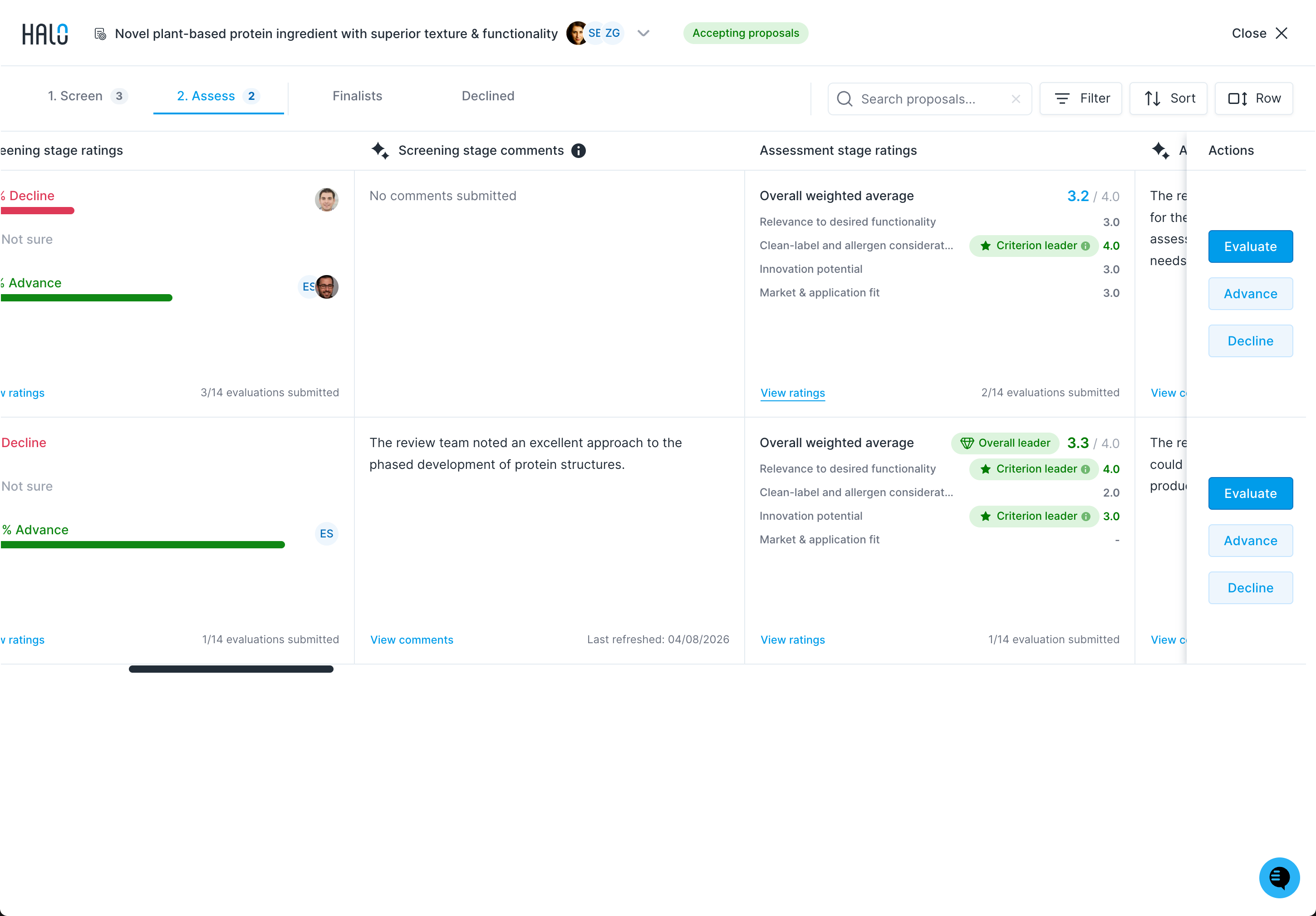
When the panel opens, you'll see an overall weighted average, along with average scores for each criterion.
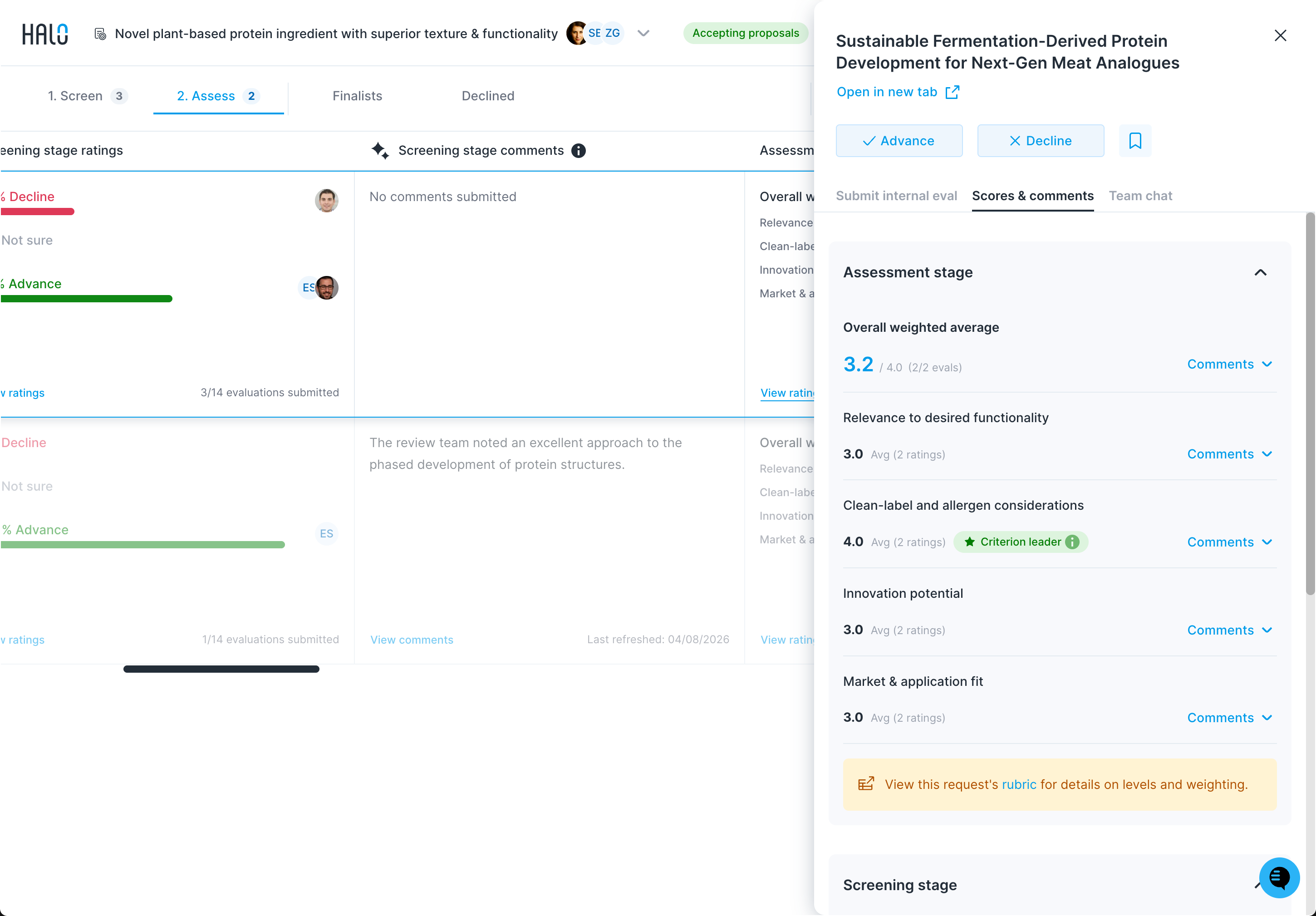
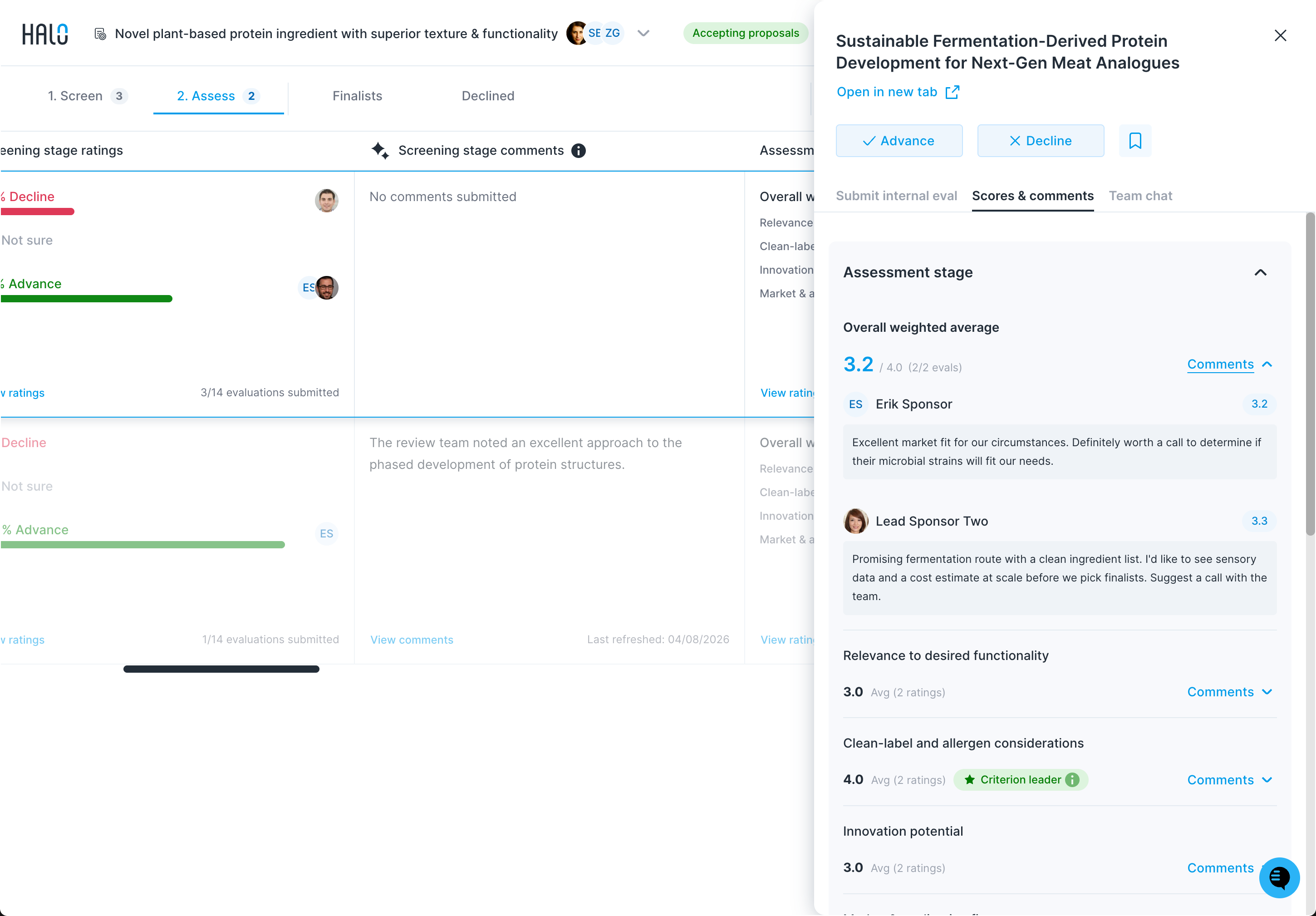
Click Comments to expand the panel for the overall rating and each criterion.
Each criterion will show the distribution of ratings, alongside written commentary.
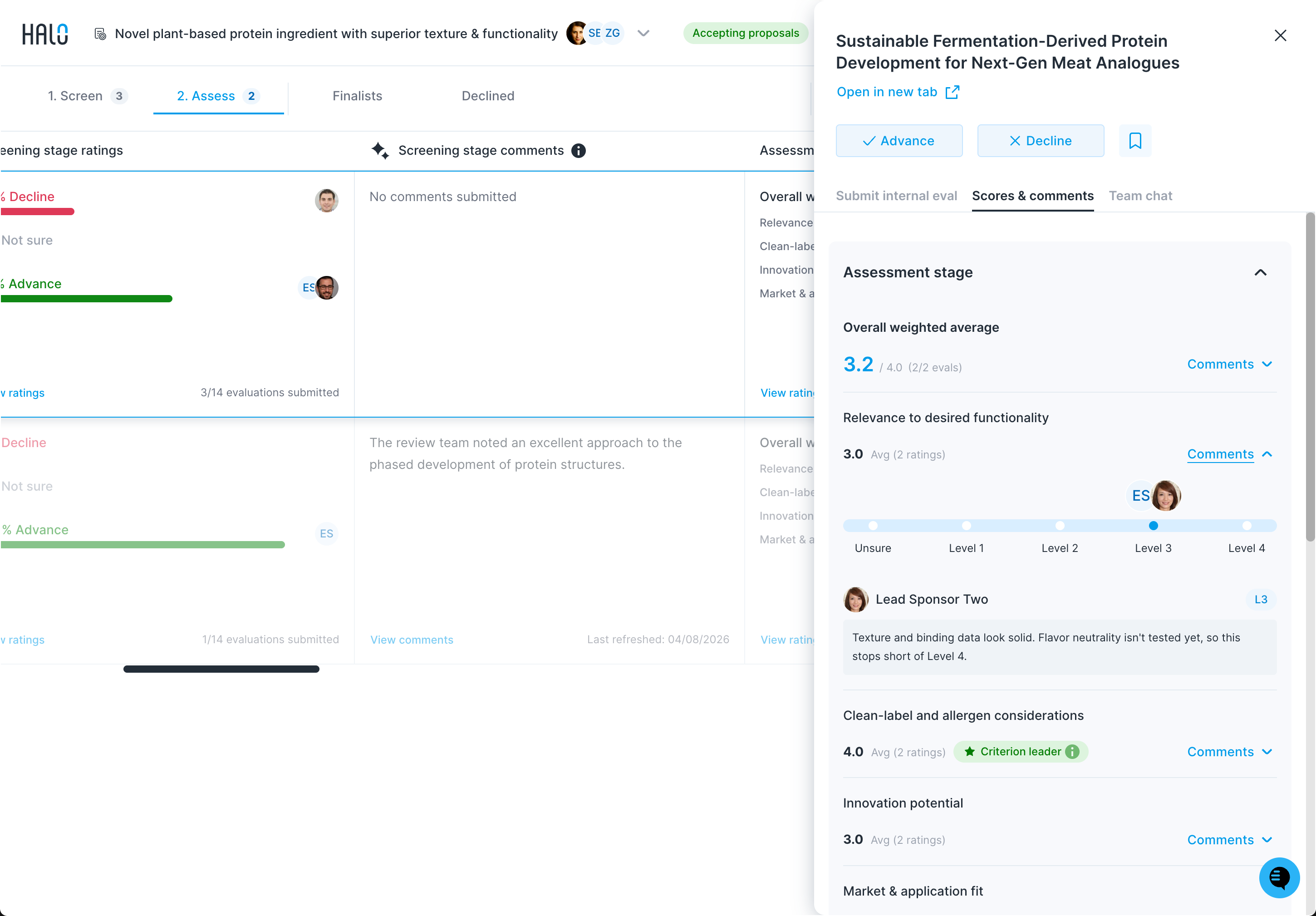
Note: To avoid skewing results, Unsure ratings are excluded from score calculations.
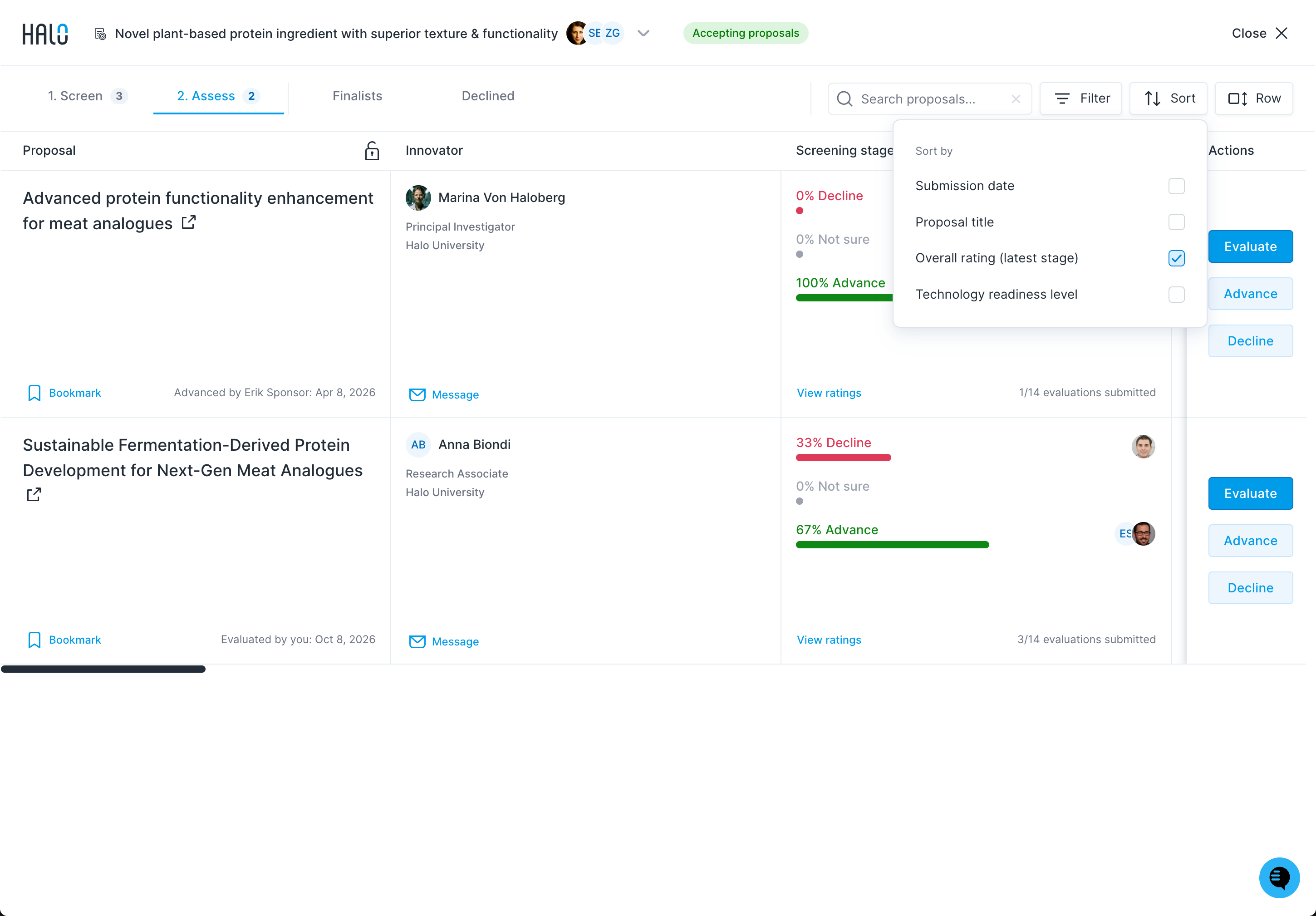
You can reorder and filter proposals to make analysis of advanced scorecard feedback easier. Click the Sort button to access sorting options for proposals.
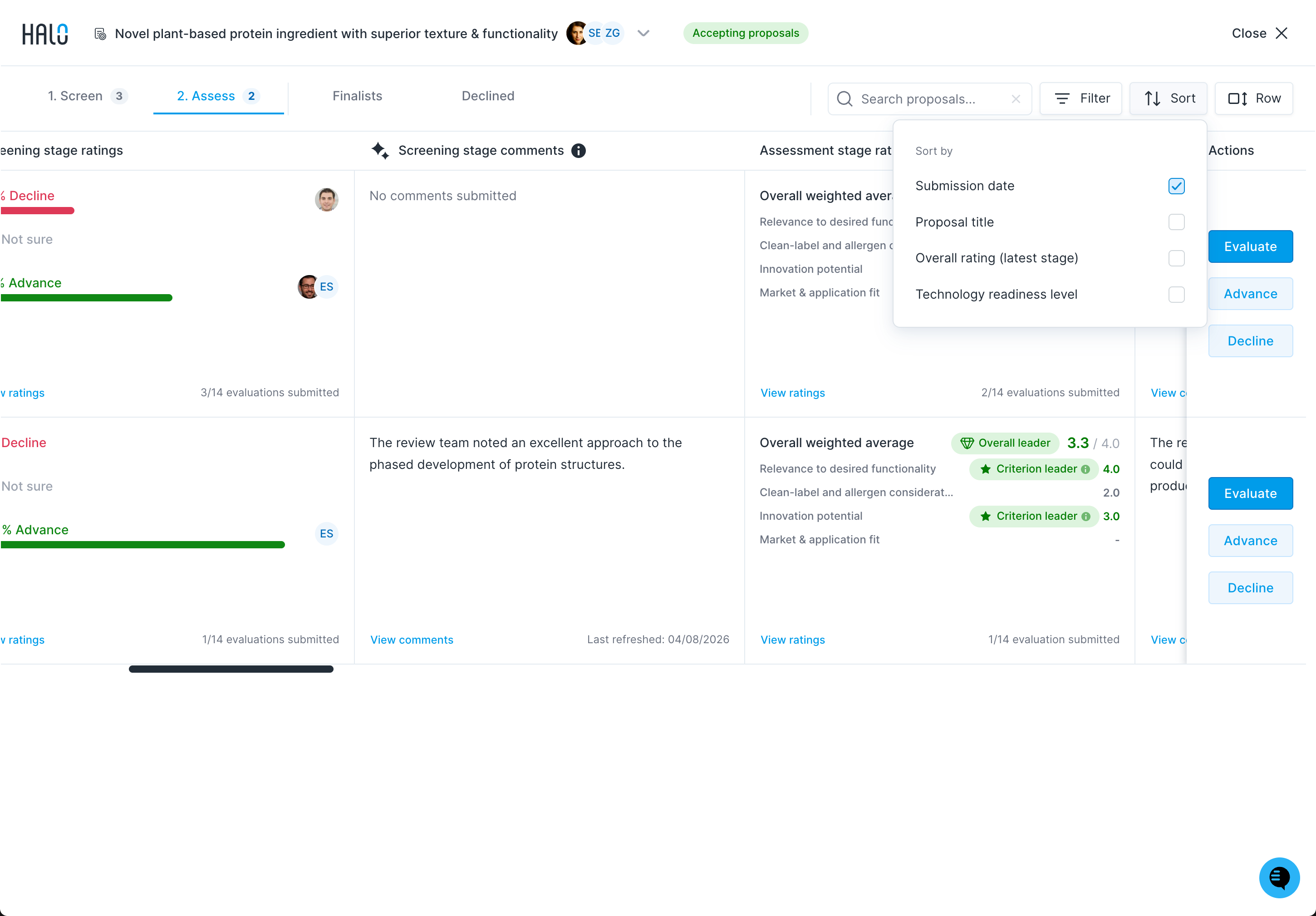
Sort by Overall rating (latest stage) to see the current highest scoring proposals at the top of the list of proposals.
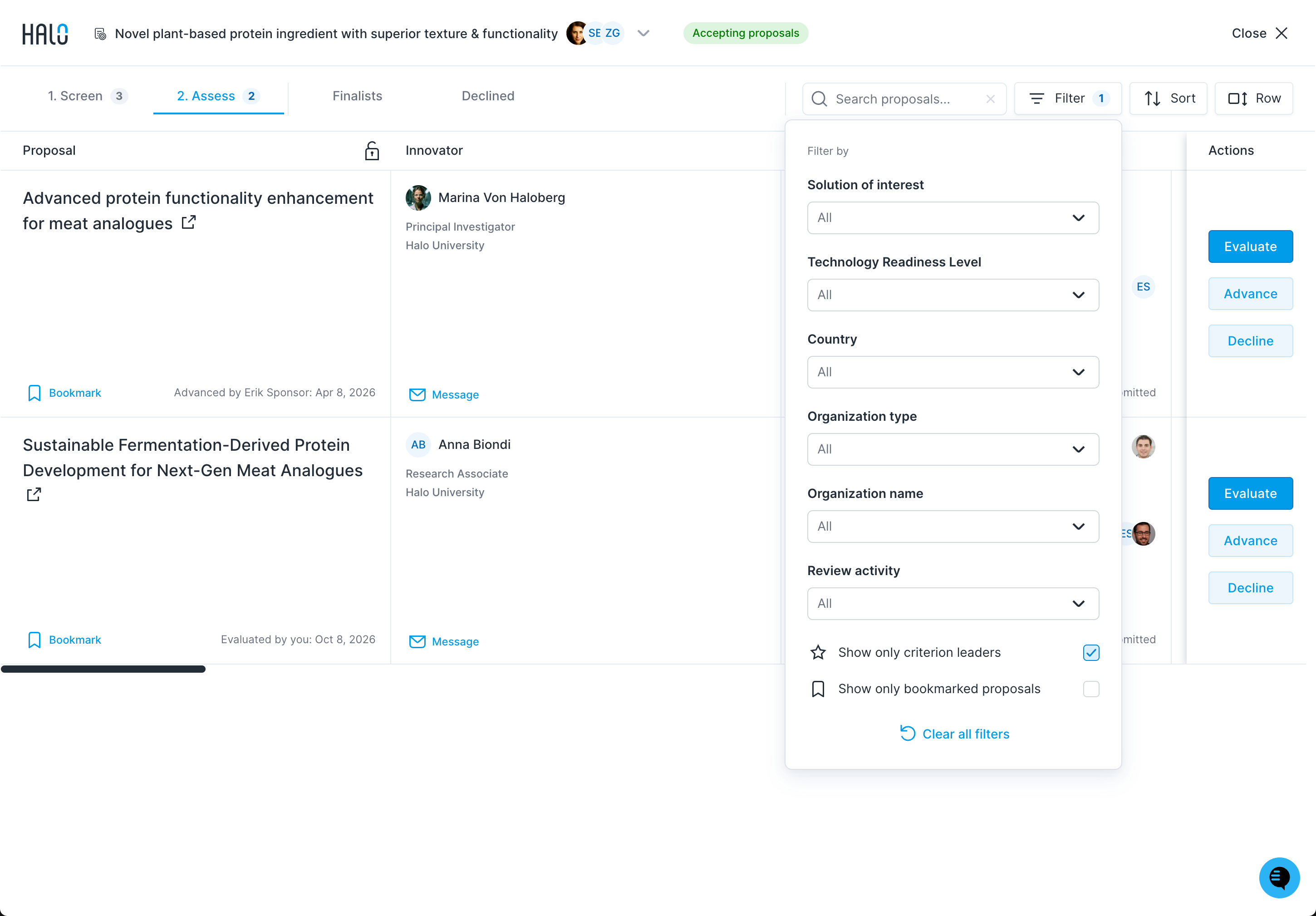
Click the Filter button to access filter options for proposals.
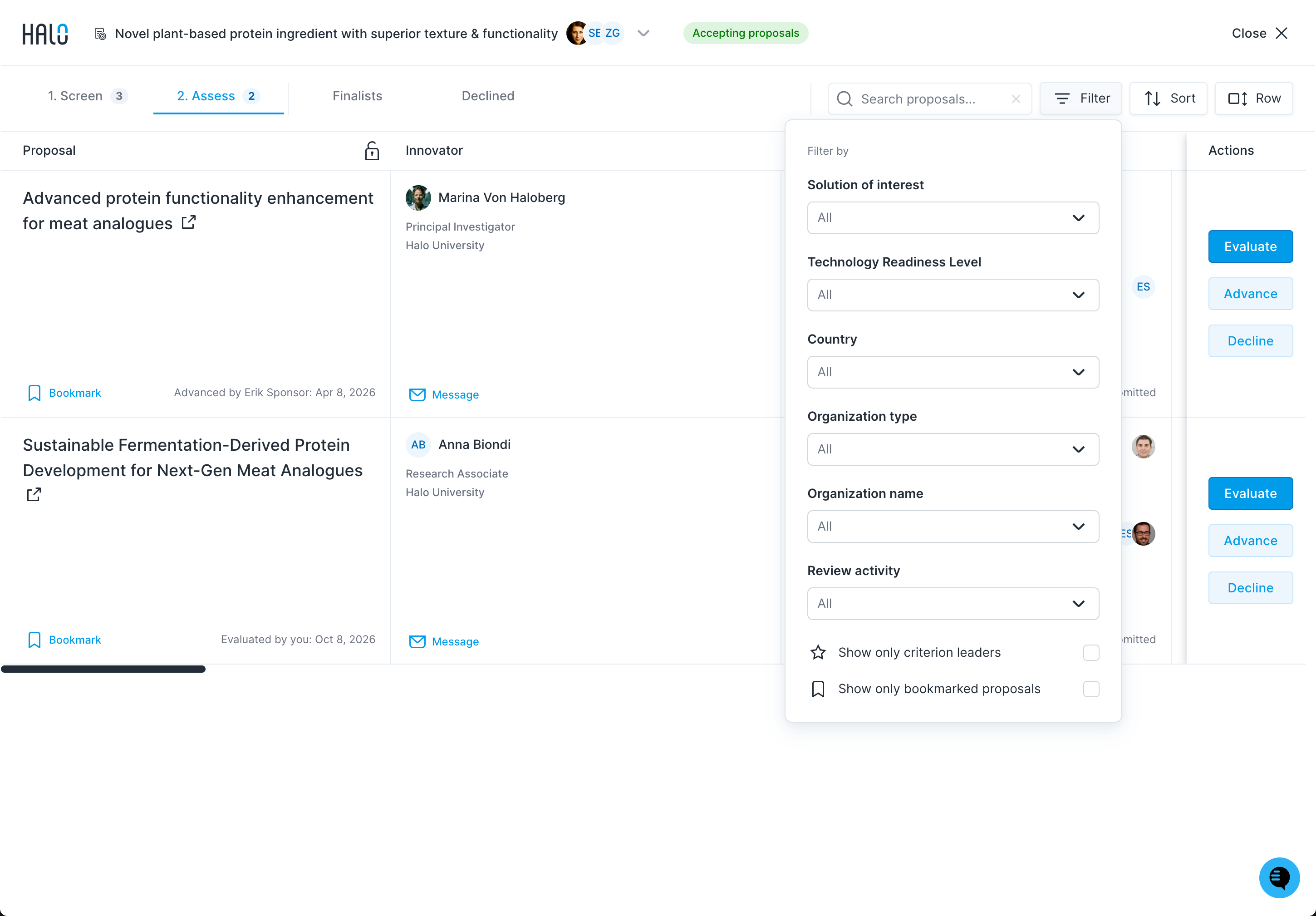
Select Show only criterion leaders to view only the proposals currently scoring highest for each scorecard criterion.